

2.select a dark gray for your foreground color and a light gray for your background.

3.Select the gradient tool (Linear, fore to background) and drag from the top to the bottom of the image. Tip: Hold down the shift key to constrain to 90 degrees.

4.Add a bevel to the type using the Layer style - Bevel and emboss. Your type should look like this now.

5.Now we want to remove the layer style, but we want to keep the bevel (Merge the effect into the layer).
We do this by adding a new layer and dragging it directly underneath the layer with the effect ("Chrome" layer).
Now select the "Chrome" layer thumbnail and press Cmd/Ctrl+E This merges the selected layer with the one directly under it and "renders all effects"

6.Apply the plastic wrap filter. This is found under Effects>Artistic

7.This is where it all happens: Open Image>Adjust>Curves Cmd/Ctrl+M and make a curve like the one in the example.
http://photoshopcafe.com/tutorials/chrome/chrome-7.gif
play around with it.
8.Click ok.
The image shows the results of the curve applied to the image.

9.Repeat the same settings, by holding down the Alt/Option key as you open the dialog box Image>Adjust>Curves or Option+Cmd/Alt+Ctrl+M
The result as shown here

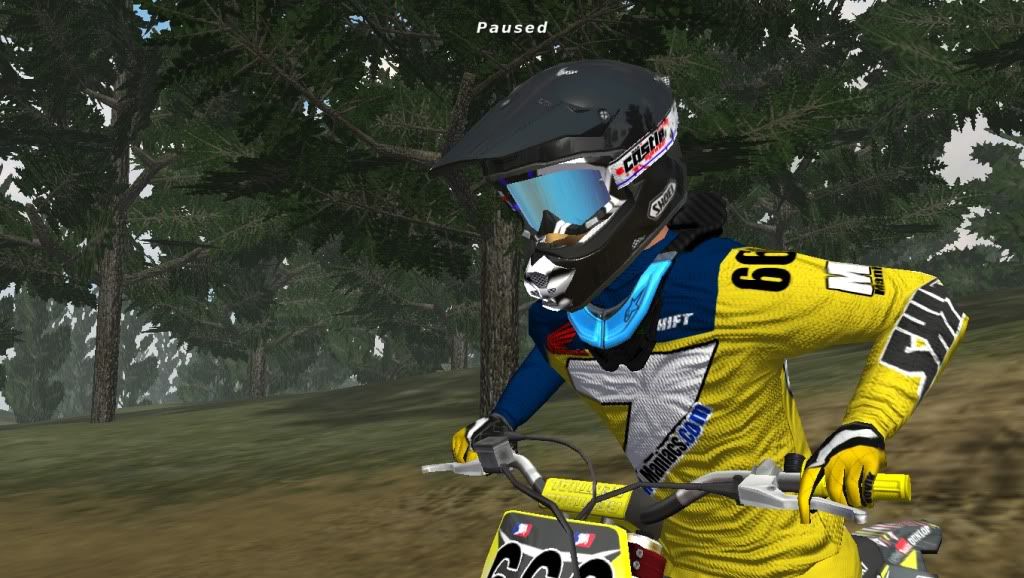
also play with the spec map.

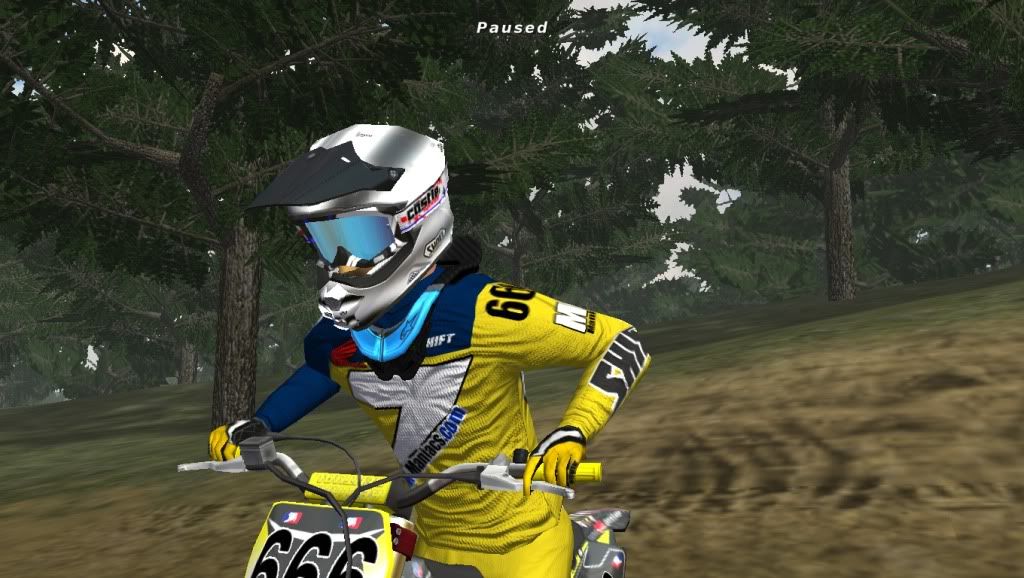
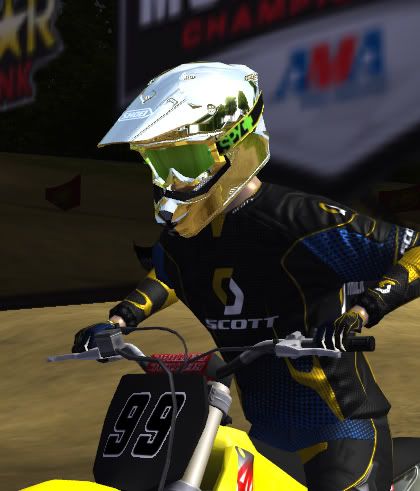

 looks good!